The same factor across your ingredient list
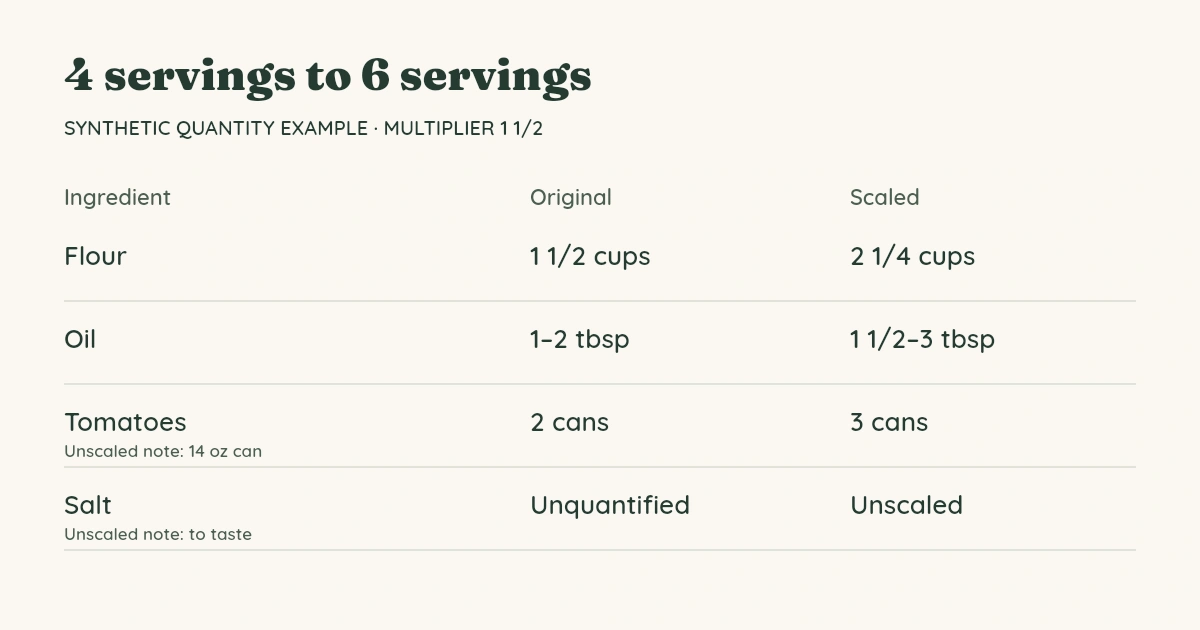
Divide the target servings by the original servings to find the multiplier. Going from four servings to six gives 6 ÷ 4 = 1.5. An original 1 1/2 cups becomes 2 1/4 cups. Going from six servings to two uses a factor of 1/3, so that same 1 1/2 cups becomes 1/2 cup.
Enter the quantity and unit separately. The calculator multiplies the amount and leaves your unit text alone: cups stay cups, grams stay grams, and cans stay cans. It does not convert between weight and volume, choose a different unit or round a partial package up to a whole one.
Keep the can size out of the multiplier
For “2 cans tomatoes, 14 oz each,” put Tomatoes in Ingredient, 2 in Amount, cans in Unit and 14 oz can in Note. At 1.5×, the result is 3 cans with the same 14 oz can note. Putting 14 in Amount would scale the size rather than the number of cans.
Use the same separation for a brand, preparation description or other wording that should remain as written. Every note is labelled unscaled in the result, copied text and print view. For an instruction such as “salt to taste,” enter Salt, leave Amount and Unit empty, and put to taste in Note. The result marks that row Unscaled rather than guessing a quantity.
Fractions and ranges stay visible
Amount accepts ordinary fractions such as 1/3, mixed numbers such as 1 1/2, common fraction characters such as ⅓ and decimal numbers such as 0.25. Use a period for decimals. A hyphen or an en dash separates range endpoints: 1–2 at 1.5× becomes 1 1/2–3. Both endpoints use the same factor.
The fraction result stays exact. A six-to-two change turns 1/3 into 1/9, with a decimal of approximately 0.111111. Decimals show up to six places, and the ≈ symbol marks rounding. The calculator does not round to the nearest measuring spoon or make decisions about indivisible ingredients.
If a serving count is zero, a denominator is zero, a range runs backward or an amount cannot be read, the editor asks you to correct it. Your original entries remain in place. Export waits until the whole list is valid, so a missing row cannot silently disappear from the copied result.
Take the quantities back to your recipe
Copy quantities includes the original and target serving counts, multiplier, before-and-after amounts, decimal values and unchanged notes. Download text saves the same list as a plain .txt file. You can select and copy from that file if your browser blocks clipboard access.
Print quantities opens a clean three-column comparison. Download print view saves that layout as an HTML file you can reopen in a browser and print later. Select Letter or A4 in your print dialog; your browser controls the final page breaks and scaling. Long ingredient names wrap, and the column headings repeat across printed pages.
You can inspect the synthetic four-to-six print example and six-to-two print example, or download their four-to-six text and six-to-two text. The 30-row layout example shows a longer list. These use the same output as the editor.
There is room for up to 30 ingredients. Add a row at the bottom or remove one you do not need. Reloading starts over with the synthetic example, so download the list before leaving. The example demonstrates arithmetic only and is not a tested recipe. This tool changes quantities; it does not adjust recipe directions or promise a cooking result.
Once your amounts are settled, the recipe card maker can put your own recipe text onto 3×5 or 4×6 cards. For a full-page collection, use the recipe binder pages.
Keep the calculator with your recipes
Published October 20, 2026.